

B2B Guest Access Creates an Unprotected Attack Vector
Published February 2, 2026 Last Updated on March 10, 2026
Executive Summary
Microsoft Teams is a core collaboration platform for Ontinue and for the organisations we protect. Our ability to engage directly with customers inside their own Teams environments is one of our most valued differentiators, and one they consistently highlight as a strength of our service. However, like all powerful collaboration tools, Teams depends on proper configuration and governance to ensure its security boundaries function as intended. Effective protection is not inherent to the platform; it emerges from how each tenant chooses to manage external access, identity boundaries, and integrated security controls.
This research outlines a security gap that does not reflect a flaw in Teams itself, but rather the architectural reality of cross-tenant collaboration. When users operate as guests in another tenant, their protections are determined entirely by that hosting environment, not by their home organisation. Understanding this distinction is essential as Microsoft continues expanding cross-tenant collaboration capabilities, including new features designed to make guest invitations easier and more seamless. These advancements increase collaboration opportunities, but they also widen the responsibility for ensuring those external environments are trustworthy and properly secured.
A critical security gap in Microsoft’s B2B guest collaboration allows attackers to bypass all Defender for Office 365 protections by inviting users into malicious tenants.
Key Findings:
- Teams security policies apply from the hosting tenant, not your home organisation
- When users accept guest invitations to external tenants, they lose all Defender for Office365 protections (Safe Links, ZAP, malware scanning)
- Attackers create “protection-free zones” by disabling security in their tenants or due to its absence in a default Azure environment
- Microsoft’s MC1182004 feature (enabled by default) makes delivering guest invitations trivial
- Most organisations accept guest invitations from any Microsoft 365 tenant worldwide by default
Understanding the Risk
Microsoft Teams has become the primary collaboration platform for organisations worldwide. Security teams invest heavily in Microsoft Defender for Office 365 to protect against phishing, malware, and malicious URLs. Most assume these protections follow their users everywhere including when collaborating as guests in external tenants.
That assumption is dangerously wrong.
In November 2025, Microsoft enabled a new feature (MC1182004) that allows Teams users to initiate chats with any email address. Recipients receive an invitation to join as guests. This feature is set to enabled by default. It creates a perfect attack vector for threat actors who understand how cross-tenant security actually works. If Teams Public Preview is enabled, users can opt in and access the feature immediately.

This article documents a fundamental protection gap when your users accept guest invitations to malicious tenants, they lose all Defender for Office 365 protections. The attacker controls the security policies in their tenant and can disable everything.
The Feature That Makes This Worse
Microsoft announced MC1182004: “Chat with anyone with an email address”. This feature allows any Teams user to initiate a chat with anyone who has an email address even if they’re not currently using Teams. While this sounds like a great feature and does enable more collaboration there are always risk. The feature is available on low-cost SMB licenses, making malicious tenant setup economical for attackers.
Key aspects of this feature:
- Enabled by default across all tenants
- No opt-in required for organisations
- Recipients receive email invitations to join as guests
- Works across Android, Desktop, iOS, Linux, and Mac platforms
Microsoft’s stated goal is to simplify external engagement and support flexible work scenarios. From a security perspective, it expands the attack surface.
Default Enablement: The Core Problem
The most concerning aspect is default enablement. Security teams must proactively discover and disable this feature.
Microsoft provides a PowerShell command to disable it:
PowerShell:
Set-CsTeamsMessagingPolicy -Identity Global -UseB2BInvitesToAddExternalUsers $falseHowever, this only prevents outbound invitations from your tenant. It doesn’t protect against inbound invitations from malicious tenants.
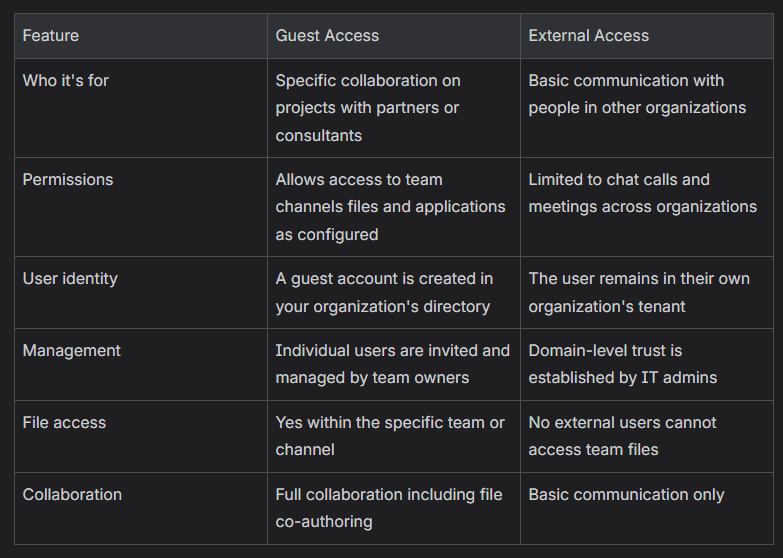
Guest Access vs External Access
Microsoft Teams offers three methods for external collaboration, and each model handles security policies differently. Understanding these differences is essential to grasping the attack vector documented in this research.
The common method used by threat actors is External Access and has been for a while now. With the option of External Access enabled but allowed to communicate globally, you allow external messages into your organisation. But our focus within this research is Guest Access.
Where Protection Actually Lives
Understanding Resource Tenant vs. Home Tenant
Microsoft Teams protection operates on a simple principle that most security professionals don’t fully grasp: security policies apply from the resource tenant, not the home tenant.
Here’s what that means in practice:
- Resource Tenant – The tenant hosting the conversation or shared channel
- Home Tenant – The tenant where the user’s account originates
When your user accepts a guest invitation to an external tenant, they enter that tenant’s security boundary. All Microsoft Defender for Office 365 protections, Safe Links, Zero-hour Auto Purge (ZAP), URL scanning, and Safe Attachments are controlled by the resource tenant’s policies.
Your organisation’s carefully configured security controls don’t follow them.
How Teams Protection Features Work
Microsoft Defender for Office 365 provides several protection layers for Teams:
- Safe Links: Time-of-click URL scanning that blocks malicious links
- Zero-hour Auto Purge (ZAP): Retroactive removal of malicious messages
- Real-time URL scanning: Pre-emptive blocking of known malicious domains
- Safe Attachments: Detonation and analysis of shared files
According to Microsoft’s documentation on Teams protection, these features check whether the organisation uses Defender for Office 365 and whether users are included in applicable policies. The critical detail, this check happens against the resource tenant, not the home tenant.
When a user clicks a URL in Teams, Safe Links examines the resource tenant’s policies. If the resource tenant has disabled Safe Links as an attacker would the protection simply doesn’t apply.

The Assumption Gap
Most security teams may operate under the following assumptions:
- “Our Defender for Office 365 policies protect our users everywhere”
- “We control whether our users can collaborate externally”
- “Guest users retain their home tenant’s security controls”
In reality, security teams need to consider that:
- Protection applies from where the conversation is hosted, not where your user’s account lives
- Your users become unprotected guests in malicious environments, governed entirely by the attacker’s security policies
The Unprotected Environment
Attack Prerequisites
An attacker needs surprisingly little to execute this attack:
- A Microsoft 365 tenant (can be trial or paid)
- Basic understanding of B2B guest access
- Target email addresses (obtained via reconnaissance or social engineering)
The cost is minimal. The impact is severe.
Attack Flow Breakdown:
Phase 1 – Tenant Preparation
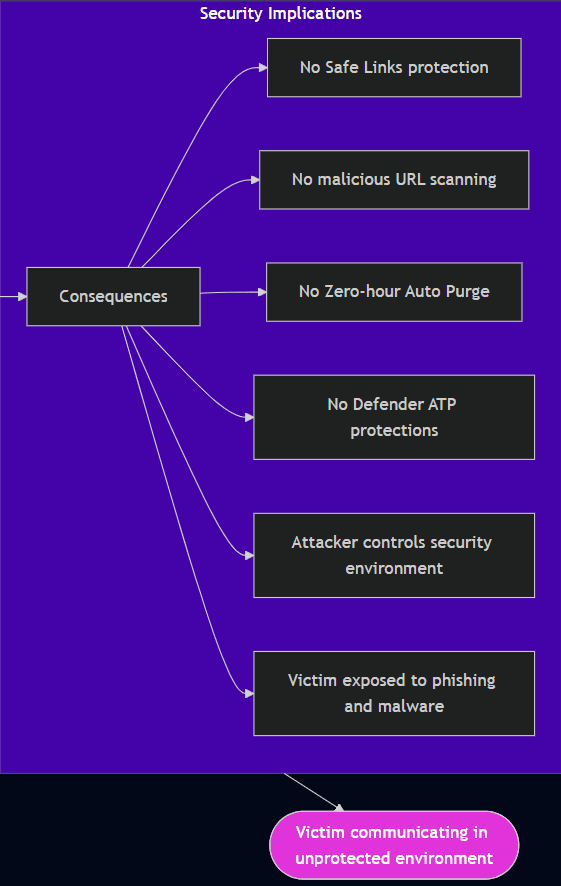
The attacker creates a malicious Microsoft 365 tenant using a low-cost license (Teams Essentials, Business Basic, or trial). These licenses do not include Microsoft Defender for Office 365, meaning:
- No Safe Links policies exist
- No Safe Attachments policies exist
- No ZAP (Zero-hour Auto Purge) for Teams
- No advanced threat protection capabilities
No configuration is required. The attacker’s tenant is unprotected by default.
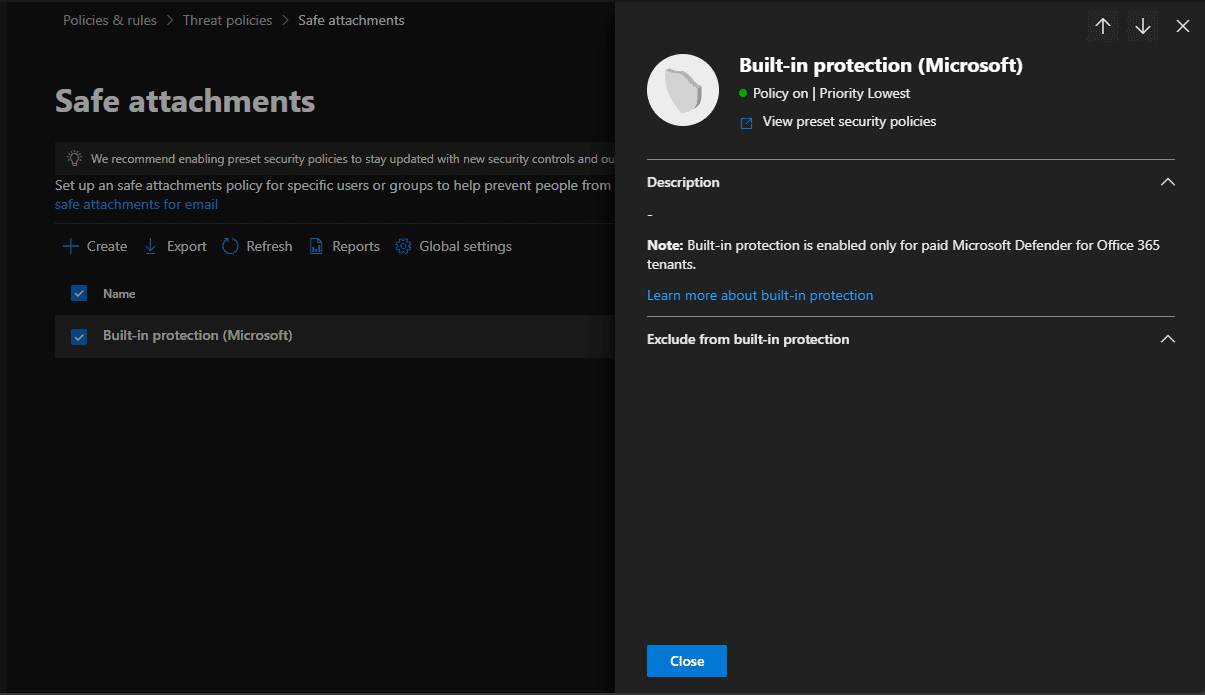
From my perspective, I have a configured tenant with an E5 Licence that contains Defender for Office365, the following shows “Built-in protection (Microsoft)” that are ON.
Note: “Built-in protection is enabled only for paid Microsoft Defender for Office 365 tenants” which the threat actor will not have, therefor leaving it unprotected. This also is the same for Safe Links and Anti-malware.
Phase 2 – Target Selection and Initial Contact
The attacker researches the target organisation. They identify users through:
- LinkedIn reconnaissance
- Company websites and directories
- Email pattern analysis
- Previous data breaches
They craft convincing pretexts for communication. Common scenarios include:
- Business partnership proposals
- Vendor relationship discussions
- Industry collaboration opportunities
- Conference or event coordination
The attacker initiates contact via Teams by typing the victim’s email address. Teams sends an email invitation to join the chat as a guest.
The Critical Point Even if the victim’s organisation has disabled ‘UseB2BInvitesToAddExternalUsers’, this setting only prevents users from sending invitations. It doesn’t prevent them from receiving invitations from external tenants.
Phase 3 – The Invitation
The victim receives an email that appears legitimate:
The email comes from Microsoft’s infrastructure ([email protected] – region-dependent). It passes SPF, DKIM, and DMARC checks. Most email security solutions won’t flag it because it’s genuinely from Microsoft.
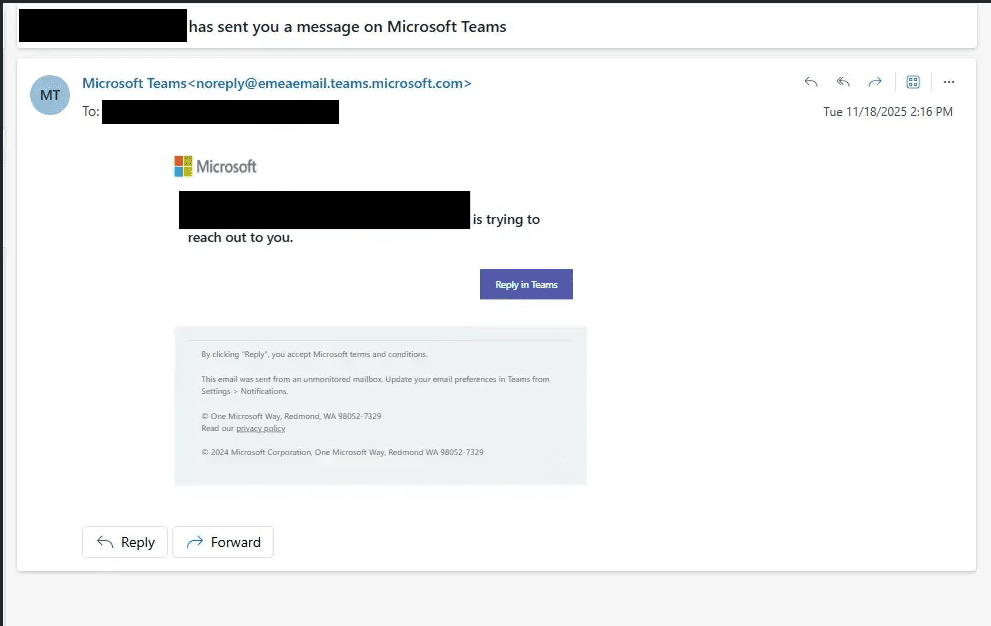
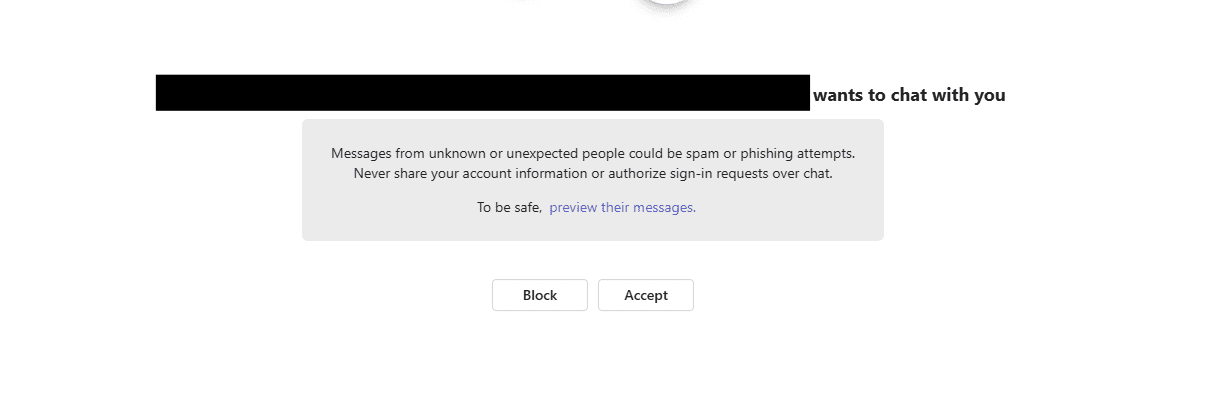
Note: if the user already has teams which we expect them to have then they don’t receive this email. they will get the external message request (notification) via Teams directly.
Phase 4 – Operating in the Unprotected Environment
The attacker can perform the following:

Send Phishing Links Without Detection:
- No Safe Links scanning occurs
- No warning messages appear to users
Distribute Malware Without Consequences:
- No Safe Attachments scanning
- No ZAP to remove malicious content retroactively
- No alerts generated in the victim’s security console
Conduct Social Engineering at Scale:
- Build rapport over multiple conversations
- Reference “previous discussions” to establish legitimacy
- Impersonate vendors or partners using similar names
- Pivot to more sensitive topics after establishing trust
- Pivot to other RMM tools such as QuickAssist.
Exfiltrate Information:
- Request documents or data under false pretences
- Screenshot conversations for intelligence gathering
- Gather information about internal processes and systems
The victim’s organisation remains completely unaware. Their security controls never triggered because the attack occurred outside their security boundary.
Mitigation Strategies
Allow or Block Invitations – Microsoft Entra External ID
Restrict B2B Guest Invitations
To protect against this:
- Restrict B2B Guest Invitations: Configure your B2B collaboration settings to only allow guest invitations from trusted domains
- Go to Microsoft Entra ID → External Identities → External collaboration settings
- Select “Allow only specific external domains” and create an allowlist
- Implement Cross-Tenant Access Policies: Configure granular inbound/outbound access controls
- Microsoft Entra ID → External Identities → Cross-tenant access settings
- Block or restrict B2B collaboration by default
- Only allow specific trusted organisations
- Restrict External Teams Communication: In Teams Admin Center, limit external access
- Teams Admin Center → Users → External access
- Configure to “Allow only specific external domains”
- User Education: Train users to be sceptical of unexpected Teams invitations from external sources
Conclusion
This research reveals a fundamental architectural gap in Microsoft Teams guest access: when your users accept guest invitations to external tenants, they leave your security boundary entirely. The hosting tenant’s policies apply, not yours.
Attackers exploit this by creating tenants with all protections disabled, then inviting victims into these unprotected environments. Microsoft’s MC1182004 feature, enabled by default, makes delivering these invitations trivial.
Protect your organisation now:
- Restrict B2B collaboration to trusted domains only
- Implement cross-tenant access policies
- Educate users about external invitation risks
Don’t assume your Defender for Office 365 investment follows your users everywhere. It doesn’t.
References
Microsoft Documentation
- Microsoft Defender for Office 365 support for Microsoft Teams
- Cross-tenant access settings in Azure AD
- Safe Links policies in Microsoft Defender for Office 365
- Zero-hour auto purge (ZAP) in Microsoft Teams
- External collaboration settings in Azure AD
Message Centre Reference
Further Reading on B2B Security

Rhys is a Threat Researcher at Ontinue. Rhys started his career in IT, as a technician, which is where he discovered the world of cybersecurity. He ultimately decided to complete his degree in cyber and then landed his first role as a SOC analyst in 2021.
He said that what interests him the most about security is malware. He loves analyzing it and breaking it down to uncover its capabilities.